
How to Check Laptop Specs: Complete Guide from Alam Tech
Introduction to Understanding Laptop Specifications | How to Check Laptop Specs
How to Check Laptop Specs: Buying or using a laptop without understanding its specifications is like driving a vehicle without knowing its engine capacity or performance limits. For anyone planning to invest in a laptop, learning how to check laptop specs is one of the most important steps. It helps you understand what your device is capable of and whether it matches your needs.
At Alam Tech, customers are always guided to make informed decisions rather than relying on assumptions. Knowing how to check laptop specs allows you to compare models, avoid underpowered devices, and ensure long-term satisfaction. Whether you are buying a new laptop or evaluating your current one, understanding specifications is essential.
Why Checking Laptop Specifications is Important
One of the key reasons to learn how to check laptop specs is to avoid mismatched expectations. Many users purchase laptops based on appearance or brand without verifying performance capabilities. This can lead to slow performance, limited multitasking, or inability to run required software.
Checking specifications ensures that your laptop meets your usage needs. It also helps in identifying upgrade options, troubleshooting issues, and comparing different models. At Alam Tech, customers are encouraged to always verify specifications before making a purchase to ensure maximum value.
Understanding the Core Components of a Laptop
Before diving into how to check laptop specs, it is important to understand what specifications actually mean. Every laptop is made up of several key components that determine its performance.
The processor acts as the brain of the system, handling calculations and tasks. RAM determines how smoothly multiple applications can run simultaneously. Storage affects how fast data is accessed and how much information can be stored. Graphics determine visual performance, while the display impacts user experience.
Alam Tech ensures that customers understand each component clearly, making it easier to interpret specifications and choose the right device.
How to Check Laptop Specs
How to Check Laptop Specs in System Settings
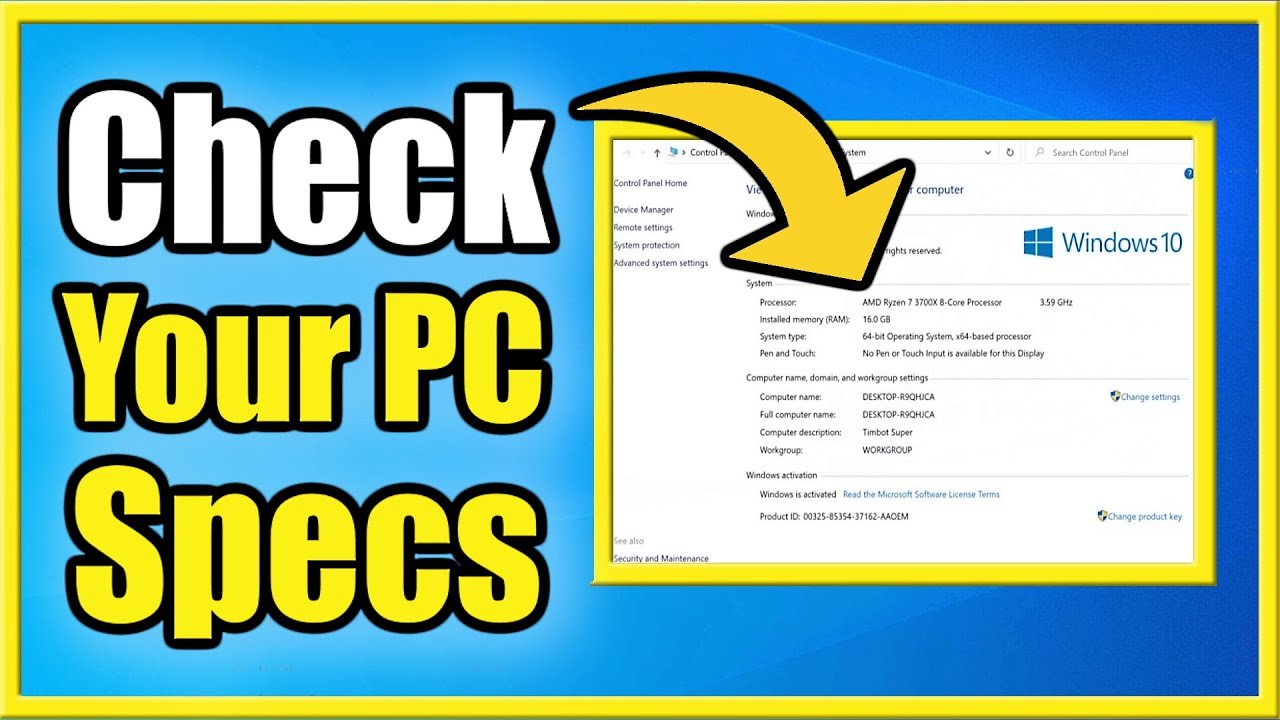
One of the simplest ways to learn how to check laptop specs is through the built-in system settings. Every laptop provides a summary of its hardware and software configuration within its operating system.
You can access system information to view details like processor type, installed RAM, operating system version, and device name. This method is quick and user-friendly, making it ideal for beginners.
At Alam Tech, customers are often guided through these steps to help them easily verify their laptop specifications without needing technical expertise.
Checking Processor Details
The processor is one of the most important specifications to check. When learning how to check laptop specs, always start with the processor.
You can find details such as processor model, speed, and generation in system information. These details help determine the overall performance of the laptop. A higher generation processor usually offers better efficiency and speed.
Alam Tech emphasizes understanding processor specifications to ensure customers choose a laptop that can handle their tasks smoothly.
How to Check RAM and Its Usage
RAM plays a major role in multitasking performance. Another essential step in how to check laptop specs is identifying the amount of installed RAM.
You can view total RAM and available memory through system settings or task manager. This helps you understand whether your laptop can handle multiple applications at once.
At Alam Tech, customers are advised to choose sufficient RAM based on their needs and consider upgrade options for future flexibility.
Checking Storage Type and Capacity
Storage is not just about capacity but also about speed. Learning how to check laptop specs includes identifying whether your laptop uses SSD or HDD.
System information and storage settings show total storage capacity and type. SSD storage offers faster performance, while HDD provides larger space at lower cost.
Alam Tech recommends checking both storage type and capacity to ensure a balance between speed and space.
How to Check Graphics Specifications
Graphics are important for gaming, editing, and visual tasks. Another step in how to check laptop specs is identifying the graphics configuration.
You can check whether your laptop uses integrated graphics or a dedicated graphics card. This information is available in system settings or device manager.
Alam Tech helps customers understand graphics specifications so they can choose the right laptop for their specific needs.
Understanding Display Specifications
Display quality greatly affects user experience. When learning how to check laptop specs, do not ignore display details.
Check screen size, resolution, and panel type. Higher resolution provides better clarity, while good panel quality ensures accurate colors and brightness.
At Alam Tech, customers are guided to select displays that match their usage, whether for study, work, or entertainment.
Checking Battery Information
Battery performance is another important factor. Knowing how to check laptop specs includes understanding battery capacity and health.
Some systems allow you to view battery details and usage statistics. This helps you estimate how long the laptop can run on a single charge.
Alam Tech ensures customers consider battery performance, especially for users who require mobility.
How to Check Operating System Details
The operating system defines the overall user experience. Another important step in how to check laptop specs is verifying OS details.
You can check the version, edition, and system type through system settings. This information helps ensure compatibility with software and applications.
Alam Tech provides guidance on selecting the right operating system based on user preferences and requirements.
Using Task Manager to Monitor Performance
Task Manager is a powerful tool for checking real-time performance. It is an essential part of understanding how to check laptop specs.
You can monitor CPU usage, memory usage, disk activity, and more. This helps you understand how your laptop performs under different workloads.
At Alam Tech, customers are encouraged to use Task Manager to evaluate performance and identify potential issues.
Device Manager for Hardware Details
Device Manager provides detailed information about hardware components. Another useful method in how to check laptop specs is exploring this tool.
It shows all installed hardware, including drivers and configurations. This helps in troubleshooting and verifying components.
Alam Tech uses this method to help customers confirm the authenticity and functionality of laptop hardware.
Checking Laptop Specs Before Buying
When purchasing a new laptop, knowing how to check laptop specs is crucial. Always verify specifications before making a decision.
Compare different models based on processor, RAM, storage, and graphics. Ensure the specifications match your usage requirements.
At Alam Tech, customers are guided through this process to ensure they choose the best laptop for their needs.
How to Compare Laptop Specifications
Comparison is an important part of decision-making. Another key aspect of how to check laptop specs is comparing multiple devices.
Look at performance, features, and price to find the best value. Avoid focusing on a single specification; instead, consider the overall balance.
Alam Tech helps customers compare laptops effectively, ensuring they make informed choices.
Common Mistakes When Checking Laptop Specs
Many users make mistakes when checking specifications. One common mistake is focusing only on RAM or storage without considering the processor.
Another mistake is ignoring graphics performance or display quality. Some users also overlook upgrade options.
Alam Tech educates customers about these mistakes, helping them make smarter decisions when evaluating laptops.
How to Verify Laptop Specs at a Store
When visiting a store, always verify specifications physically. Learning how to check laptop specs in person ensures accuracy.
Check labels, system settings, and ask for assistance if needed. Testing the laptop helps confirm performance.
Alam Tech provides hands-on guidance, allowing customers to verify specifications before purchase.
Importance of Authentic Specifications
Authenticity is crucial when checking laptop specs. Always ensure that the specifications provided match the actual device.
Fake or incorrect information can lead to poor performance and dissatisfaction. Verification helps avoid such issues.
Alam Tech guarantees genuine products with accurate specifications, ensuring customer trust.
How to Check Laptop Specs for Upgradability
Upgradability is an important factor for long-term use. Another part of how to check laptop specs is identifying upgrade options.
Check whether RAM and storage can be upgraded. This provides flexibility for future improvements.
Alam Tech recommends choosing laptops with upgrade options for better long-term value.
Tips for Beginners to Check Laptop Specs
Beginners may find specifications confusing. Simple laptop buying tips include focusing on key components first.
Start with processor, RAM, and storage, then move to graphics and display. Avoid technical overload.
Alam Tech simplifies the process, making it easy for beginners to understand and evaluate specifications.
How to Check Laptop Specs for Gaming
Gaming requires powerful specifications. When learning how to check laptop specs for gaming, focus on processor, GPU, and RAM.
High refresh rate displays and cooling systems are also important. Checking these ensures smooth gaming performance.
Alam Tech helps gamers choose laptops that meet performance requirements without overspending.
How to Check Laptop Specs for Professional Work
Professional users need reliable performance. Another aspect of how to check laptop specs is evaluating productivity features.
Check processor speed, RAM capacity, and storage type. Display quality and battery life are also important.
Alam Tech provides tailored recommendations for professionals, ensuring efficiency and reliability.
Why Choose Alam Tech for Laptop Guidance
Alam Tech is committed to helping customers make informed decisions. The focus is on providing expert guidance and genuine products.
Customers receive personalized support in understanding and checking laptop specifications. This ensures they choose the right device.
By following these laptop buying tips and learning how to check laptop specs, customers can confidently invest in a laptop that meets their needs.
Final Thoughts on How to Check Laptop Specs
Understanding how to check laptop specs is essential for making smart decisions. It helps you evaluate performance, compare options, and avoid common mistakes.
From checking processor and RAM to verifying storage and graphics, every step plays a crucial role. With proper knowledge, you can ensure your laptop meets your expectations.
Alam Tech continues to guide customers through every step of the process, ensuring they make confident and informed choices.
Contact us:
Faqs on how to check laptop specs by Alam Tech:
1. What is the easiest way to check laptop specs on Windows?
The easiest way to check laptop specs on a Windows device is through the “System” settings. You can press Windows + Pause/Break to view the basic information, including processor, RAM, and system type. For more detailed info, the “Task Manager” and “Device Manager” provide specifics about performance and installed hardware. This method does not require any third-party tools. It is reliable and sufficient for most users. At Alam Tech, our experts guide customers through these steps when evaluating laptops.
2. How can I check laptop specs on a Mac?
On a Mac, click the Apple logo and select “About This Mac.” This shows information about the processor, memory (RAM), storage, and graphics. You can also click “System Report” for detailed specs, including hardware and software configurations. This method provides a complete view of your Mac’s capabilities. Knowing these details helps users make informed decisions when upgrading or troubleshooting. Alam Tech advises Mac users to always check system specifications before installing demanding software.
3. Why is it important to check the processor specification?
The processor, or CPU, determines the laptop’s overall performance. Checking its model and speed helps you know if it can handle your workload. For example, Intel Core i5 or AMD Ryzen 5 is sufficient for everyday tasks, while higher-end i7 or Ryzen 7 is better for gaming or editing. Alam Tech recommends evaluating processor specifications first to avoid underpowered laptops. It is also crucial for future-proofing your device. A proper CPU ensures smooth multitasking and long-term reliability.
4. How do I check RAM in my laptop?
You can check RAM in Windows via the “System” settings or Task Manager under the Performance tab. It shows total memory and how much is in use. On Mac, RAM information is available under “About This Mac.” RAM affects how many applications you can run simultaneously without slowing the system. Alam Tech often advises 8GB as a minimum for regular users and 16GB or more for professionals. Checking RAM ensures your laptop can handle your multitasking needs.
5. How can I verify storage capacity and type?
Storage can be checked in Windows under “This PC,” showing total and available disk space. For more detail, the “Disk Management” tool reveals storage type, partitions, and drive health. On Mac, storage info is under “About This Mac → Storage.” SSDs are faster and improve performance, while HDDs offer larger space at lower cost. Alam Tech emphasizes checking both capacity and type to match your speed and storage requirements. Proper storage ensures smoother operations and longer lifespan.
6. What is the best way to check graphics specifications?
Graphics can be integrated (built-in) or dedicated (discrete GPU). On Windows, check Device Manager under “Display adapters” to see your graphics card. On Mac, “About This Mac → Graphics/Displays” provides the GPU details. For gaming or video editing, a dedicated GPU is recommended. Alam Tech guides customers in choosing laptops with GPUs suitable for their usage. Knowing graphics specs ensures compatibility with software and games.
7. How can I check the laptop display resolution and quality?
Display resolution can be checked in Windows under “Display settings” and on Mac in “System Preferences → Displays.” Look for Full HD (1920×1080) or higher for clear visuals. Panel type (IPS, OLED, etc.) affects color accuracy and viewing angles. Alam Tech recommends checking display specs for tasks like graphic design, editing, or streaming. Screen brightness and refresh rate are also important for comfort. Proper display specifications improve user experience.
8. Why is battery information important, and how do I check it?
Battery info shows capacity, estimated life, and wear level. On Windows, “Battery Report” via Command Prompt gives detailed stats, while Mac shows battery condition in “System Report.” Battery life is crucial for portability, especially for students or professionals. Alam Tech advises customers to check battery performance before purchase. A healthy battery ensures long hours of usage without frequent charging. Proper evaluation prevents buying laptops with poor battery backup.
9. How do I check the operating system version?
On Windows, type winver in the search bar to see the OS version. On Mac, it is under “About This Mac.” Knowing your OS version ensures compatibility with software and security updates. Alam Tech guides customers to check OS versions before buying or upgrading. Compatibility is essential for work, gaming, and productivity applications. Updated OS improves security and system efficiency.
10. How can I use Task Manager to monitor laptop performance?
Task Manager shows CPU, RAM, disk, and GPU usage in real time. Press Ctrl + Shift + Esc on Windows to open it. You can check which applications consume the most resources. This helps identify potential bottlenecks or overloading apps. Alam Tech recommends using Task Manager to monitor performance and prevent system slowdowns. It is also useful for troubleshooting hardware issues.
11. How do I check laptop specs using Device Manager?
Device Manager lists all hardware components, including storage, graphics, and peripherals. Access it by right-clicking the Start menu in Windows. It provides details about driver versions and hardware functionality. Checking here helps verify that the hardware matches manufacturer claims. Alam Tech uses this method to confirm authenticity and resolve hardware concerns. It is particularly helpful for buyers verifying new or refurbished laptops.
12. How can I check if my laptop supports future upgrades?
Check specifications for RAM and storage upgrade options. Device Manager and system manuals often indicate whether components are replaceable. Upgradable laptops extend device life and allow performance improvements. Alam Tech advises customers to choose laptops with upgrade potential. Upgradeable systems save money in the long run. Knowing this prevents purchasing non-flexible laptops.
13. How do I verify the authenticity of laptop specs?
Cross-check system information with the official manufacturer specifications. Use tools like CPU-Z or GPU-Z for verification. Alam Tech ensures all laptops sold are genuine and verified. Authentic specifications guarantee performance and durability. Avoid relying solely on external claims. Verification helps prevent counterfeit or misrepresented devices.
14. What tools can I use to check detailed specs?
Free tools like CPU-Z, Speccy, or HWInfo provide in-depth details about CPU, RAM, storage, motherboard, and GPU. These tools are reliable and easy to use. Alam Tech trains customers to use these tools for independent verification. Using these tools ensures confidence in your laptop’s performance. They are also helpful for troubleshooting issues.
15. How do I check laptop specs for gaming?
For gaming, focus on processor, RAM, GPU, and display refresh rate. Use Task Manager and Device Manager to check real-time performance. Ensure the GPU is powerful enough for current game titles. Alam Tech advises gamers to verify specs before purchasing for optimal performance. Storage and cooling systems are also important. Proper verification avoids lag and overheating during gameplay.
16. How do I check laptop specs for professional work?
Professionals need high RAM, fast CPU, and storage for productivity applications. Use system settings or third-party tools to check specs. Display quality and battery life are also crucial. Alam Tech recommends evaluating laptops based on your professional workload. Ensuring compatibility with software improves efficiency. Verified specifications prevent downtime and productivity loss.
17. How can I compare two laptops using their specs?
List all specifications including CPU, RAM, storage, GPU, display, and battery. Compare performance, build quality, and price. Alam Tech guides customers in making balanced comparisons. Consider upgrade options and long-term usability. Comparing ensures the best value for your investment. This helps avoid unnecessary spending on overpowered or underpowered devices.
18. Why is checking weight and portability important?
Lighter laptops are easier to carry, especially for students or business professionals. Check weight in specifications or in-store. Alam Tech advises considering portability alongside performance. Heavy laptops may offer better performance but are less convenient. Balance portability and functionality for daily use. Knowing weight prevents post-purchase regret.
19. How can I check laptop cooling and thermal management?
Check system specs for cooling solutions and vents. Task Manager and hardware monitoring tools reveal temperature under load. Alam Tech recommends strong cooling for gaming or heavy usage. Proper thermal management prevents overheating and component damage. It ensures consistent performance over long periods.
20. How do I check for USB, HDMI, and other ports?
Inspect the laptop physically or check specifications. Device Manager can also list connected devices and ports. Alam Tech ensures customers verify ports for compatibility with peripherals. Having the right ports is crucial for work, presentations, and connectivity. Checking this avoids inconvenience and adapter issues.
21. How do I check if a laptop has a touchscreen?
Windows laptops: Check “Pen and Touch” in system information. Mac devices generally do not have touchscreens. Alam Tech advises verifying touchscreen availability based on user preference. Touchscreens can add convenience but may increase cost. Knowing this helps choose the most practical model.
22. How can I check laptop specs for school or college use?
Focus on processor, RAM, storage, battery life, and portability. Use system settings to verify specs before purchase. Alam Tech helps students select laptops that balance performance and cost. Lightweight and durable laptops are ideal for carrying to classes. Verified specs ensure smooth academic use.
23. Can I check laptop specs without opening it physically?
Yes, system settings and third-party software provide all necessary information. Tools like CPU-Z, HWInfo, or Task Manager give detailed insight. Alam Tech emphasizes non-invasive verification to avoid warranty issues. This method is safe, fast, and reliable. No technical knowledge is required for basic checks.
24. How do I check if my laptop supports dual storage or RAID?
Check the motherboard and storage interface specifications. System information or BIOS often indicate support. Alam Tech guides customers to identify advanced storage options. Dual storage improves performance and storage flexibility. RAID configurations can also increase speed or redundancy.
25. How do I check laptop warranty and service coverage?
Most manufacturers include warranty info in system settings or product documentation. Alam Tech verifies warranty status for all laptops sold. Checking warranty ensures coverage for repairs or replacements. It also helps in planning maintenance. Verified warranty prevents unexpected costs.
26. How do I check if my laptop is compatible with software requirements?
Compare software requirements with CPU, RAM, storage, and OS information. Use system settings or tools to check compatibility. Alam Tech ensures the laptop meets all software demands before purchase. Compatibility avoids performance issues and frustration. Always check this step before installing new applications.
27. How can I monitor laptop health over time?
Use built-in health reports, battery status, and hardware monitoring tools. Task Manager and third-party software help track performance. Alam Tech advises periodic checks to maintain performance. Monitoring prevents sudden failures and extends lifespan. It ensures the laptop remains reliable.
28. How do I check if my laptop supports virtualization?
Access BIOS settings to see if virtualization is enabled. Task Manager under CPU details can also indicate support. Alam Tech helps users enable virtualization if needed for software development or testing. Proper verification ensures software compatibility. It is essential for developers and IT professionals.
29. How do I check network and Wi-Fi specifications?
Use Device Manager to view network adapters and supported standards. Windows and Mac also display Wi-Fi speed and type in system info. Alam Tech advises customers to check Wi-Fi standards for faster connectivity. Modern laptops should support at least Wi-Fi 5 or Wi-Fi 6. Verified network specs improve internet performance and reliability.
30. Why should I consult Alam Tech when checking laptop specs?
Alam Tech provides expert guidance and personalized support. Customers learn how to check laptop specs accurately. The team ensures compatibility, performance, and longevity. This prevents buyer mistakes and enhances satisfaction. Verified guidance saves time and effort. Choosing Alam Tech ensures a confident laptop purchase experience.