
Post-Purchase Laptop Setup Tips in Nepal: A Complete Guide by Alam Tech
Introduction: Why Proper Laptop Setup Matters in Nepal
Post-Purchase Laptop Setup Tips in Nepal: Buying a new laptop is always exciting, whether it’s for study, office work, gaming, business use, or creative tasks. But many users in Nepal don’t realize that what you do after purchasing your laptop is just as important as the laptop you chose. A proper post-purchase setup not only helps your device run smoothly, but it also improves performance, boosts security, prolongs hardware life, and ensures a trouble-free digital experience.
Nepal’s climate, power conditions, internet speed variations, and general work usage patterns make post-purchase setup especially important. Dusty environments, unstable electricity, fluctuating temperatures, and slower networks can affect both performance and hardware longevity. That’s why setting up your laptop the right way is more than a routine—it’s a necessity.
At Alam Tech, we’ve helped thousands of laptop users configure and optimize their devices. From core system settings to essential software and Nepal-specific considerations, we know exactly what a new laptop needs to deliver peak performance. This guide equips you with everything required to set up your new laptop the right way—step by step, deeply explained, and tailored to Nepal’s digital environment. Let’s make sure your new investment runs efficiently, lasts long, stays secure, and performs exactly the way you expect.
Initial Hardware & Physical Setup
1. Unboxing Your Laptop Safely
When you unbox your laptop, ensure you do it in a clean, dry area. Check if the box contains:
- The laptop
- Power adapter
- Manuals
- Warranty card
- Additional items (if provided)
Inspect the device physically for dents, loose ports, scratches, or manufacturing issues. If anything seems off, immediately contact your seller.
2. Charge the Laptop Before First Use
Although modern laptops use lithium-ion batteries, it’s still recommended to:
- Plug in the charger
- Charge up to 80–100%
- Keep the device plugged in during initial setup
This ensures a stable setup environment and allows your OS to run updates smoothly.
3. Connect to a Stable Power Source
In Nepal, voltage fluctuations are common. This can damage your laptop or shorten battery life.
Use a:
- Good-quality surge protector
- UPS (recommended for desktops but helpful for laptops during outages)
4. Setting Up Your Workspace
Your working environment affects performance and comfort.
Ensure:
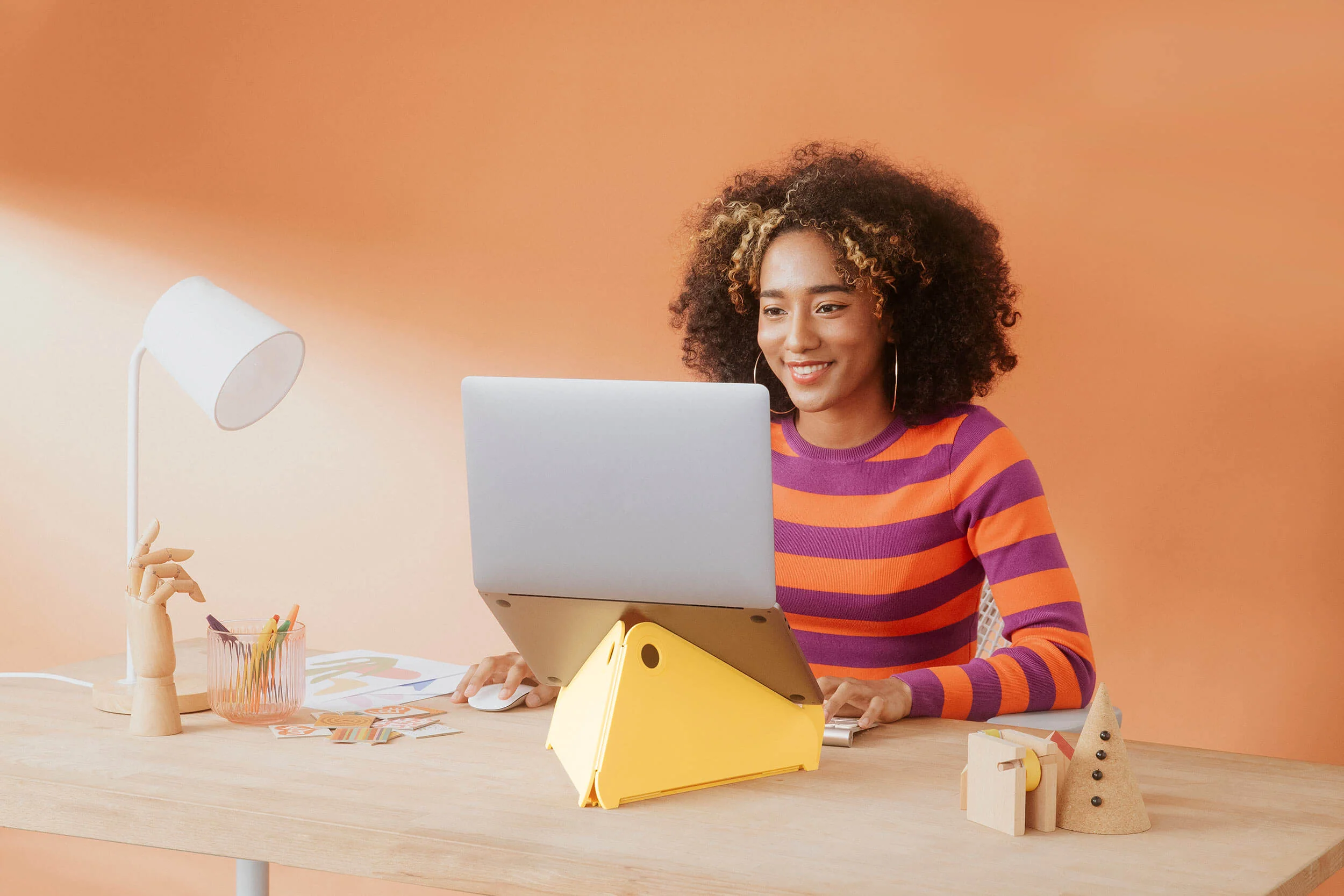
- Proper ventilation around the laptop
- No obstruction around air vents
- Avoid placing it on pillows or beds
- Use a cooling pad if your room heats up significantly
5. Remove Factory Stickers Carefully
You may choose to remove CPU, GPU, or brand stickers.
Use:
- A warm soft cloth
Avoid sharp objects that may damage the chassis.
6. Install Accessories Properly
If you bought accessories from Alam Tech—mouse, keyboard, cooler, or externals—connect them after the system setup. This reduces confusion during initial configuration.

Post-Purchase Laptop Setup Tips in Nepal
Complete Software & OS Setup
1. Windows Initial Setup
When your laptop boots for the first time, Windows will guide you through:
- Language selection
- Keyboard layout
- Wi-Fi connection
- Microsoft account login
- Privacy settings
Use English (US) for broader compatibility, but Nepali keyboard can be added later.
2. Update Windows Immediately
This is one of the most crucial steps.
Go to:
Settings → Windows Update → Check for updates
Install:
- Security patches
- Optional driver updates
- Feature updates
A fully updated system runs smoother, more secure, and more compatible.
3. Install Essential Drivers
Windows installs generic drivers, but for best performance install:
- GPU drivers (NVIDIA, AMD, Intel)
- Wi-Fi and Bluetooth drivers
- Touchpad drivers
- Audio enhancements
- Chipset drivers
Use manufacturer tools like:
- NVIDIA GeForce Experience
- AMD Adrenalin
- Intel Driver & Support Assistant
4. Remove Bloatware
Many laptops come with unnecessary software that slows down performance.
Uninstall:
- Trial antivirus
- Demo apps
- OEM bloatware
- Unused cloud tools
Go to Apps → Installed Apps and remove all non-essential items.
5. Install Essential Software
Your laptop needs core software to function properly and securely. Here’s a recommended list for Nepal:
Security
- Windows Defender (built-in and excellent)
- Malwarebytes free version
Productivity
- Microsoft Office
- Google Chrome or Microsoft Edge
- Adobe Acrobat Reader
Communication
- Zoom
- Google Meet
- Viber or WhatsApp Desktop
File Management
- WinRAR or 7-Zip
- OneDrive or Google Drive
Media
- VLC Media Player
Performance Monitoring
- HWInfo64
- MSI Afterburner
- Task Manager (built-in)
6. Set Up Email & Cloud Sync
Connect your Microsoft, Google, or work email.
Cloud sync protects your files during:
- laptop damage
- theft
- accidental deletion
7. Install Updates for Drivers & Apps
This includes:
- GPU updates
- Browser updates
- Firmware / BIOS updates (carefully)
Updating improves performance, stability, and security.
Security Setup
1. Enable Windows Defender Properly
Most laptops in Nepal do not need paid antivirus software.
Enable:
- Real-time protection
- Cloud-based protection
- Tamper protection
2. Set Up Firewall
The Windows Firewall should be ON by default.
Check via Security Settings.
3. Create Strong Passwords
Use:
- PIN
- Password
- Fingerprint scanner
- Windows Hello Face (if supported)
Use a mix of:
- capital letters
- numbers
- symbols
4. Enable Find My Device
Go to:
Settings → Privacy & Security → Find My Device
This helps track your laptop if stolen or lost.
5. Backup Before Using
Use:
- OneDrive
- Google Drive
- External hard drive
Set up File History for local backup.
6. Avoid Pirated Software
Pirated software:
- infects your system with malware
- blocks Windows updates
- slows down performance
- risks data theft
Buy genuine software for long-term safety.
Performance Optimization
1. Optimize Power Settings
Go to:
Control Panel → Power Options
Choose:
- Best Performance (for gaming and editing)
- Balanced (for daily use)
- Best Battery Life (for travel)
2. Enable Startup Optimization
Disable unwanted startup apps:
Go to:
Task Manager → Startup Apps
Disable:
- Adobe Updater
- Spotify
- Microsoft Teams (if unused)
- OEM updaters
3. Set Up Storage Optimization
Enable Storage Sense:
Settings → System → Storage
Automatic cleanup helps remove:
- temporary files
- old installation files
- recycle bin items
4. Update GPU Drivers (Important in Nepal)
For:
- games
- editing
- multitasking
GPU drivers improve FPS and stability.
5. Turn Off Background Apps
Go to:
Privacy Settings → Background Apps
Disable apps you don’t use.
6. Adjust Display Settings
Set brightness around 40–60% indoors.
Enable Night Light during evenings.
Nepal-Specific Setup Tips
1. Managing Dust & Air Quality
Nepal’s dust levels can clog fans quickly.
Do:
- Clean vents monthly
- Use compressed air
- Avoid dusty environments
2. Handling Load-Shedding & Voltage Drops
Use:
- Surge protector
- UPS
- Original charger only
3. Slow Internet Workarounds
Nepali Wi-Fi sometimes lags.
To counter:
- Disable Windows Delivery Optimization
- Pause OneDrive sync during work
- Use Ethernet cable for stable connection
4. Temperature Management
Nepal’s summers can heat rooms up to 35°C+.
Use:
- Cooling pad
- Elevated stands
- Avoid placing laptop near walls
5. Nepali Fonts & Typing Tools Setup
Install:
- Preeti
- Kantipur
- Mangal
- Nepali Unicode (Romanized or Traditional)
6. Local Apps You Might Need
- Esewa
- Khalti
- Banks’ apps
- Nagarik App
Accessories Setup
1. Mouse Setup
Choose:
- Wired mouse for gaming
- Wireless mouse for office / travel
2. Keyboard Setup
Mechanical keyboards offer better typing.
Membrane keyboards are quieter.
3. Cooling Pad Setup
Essential for gaming laptops.
4. External Storage Setup
Use SSDs for speed, HDDs for bulk storage.
5. Wi-Fi Router Optimization
Place router:
- at the center of house
- away from metal objects
Final Optimization Checklist
Essential Must-Do Steps After Buying Your Laptop
- Fully update Windows
- Install drivers
- Remove bloatware
- Enable antivirus
- Set up cloud backup
- Optimize power settings
-
Adjust display settings
- Install essential apps
- Clean vents regularly
- Avoid overheating
- Use genuine chargers
Conclusion
Setting up your laptop the right way ensures you get maximum performance, better security, longer lifespan, and overall smoother experience. In Nepal—where dust, temperature, voltage issues, and slower internet can impact your device—these steps become even more important. Whether your laptop is for study, gaming, business, or creativity, following this detailed post-purchase setup guide will help you get the most out of your investment.
Alam Tech has always focused on helping customers beyond the purchase. That’s why we prepare guides like these—to make sure your experience remains excellent from day one. If you need any assistance, hardware upgrades, software installation, or complete laptop optimization services, Alam Tech is always ready to help.
Contact us:
FAQs on Post-Purchase Laptop Setup Tips in Nepal (Alam Tech)
1. What is the first thing I should do after buying a new laptop in Nepal?
The first step is to check for physical damage, verify that all included accessories are present, and boot the laptop to ensure it runs smoothly. Then proceed to Windows setup, updates, and driver checks.
2. Why are Windows updates important right after buying a laptop?
Updates patch security vulnerabilities, improve performance, increase system stability, and ensure compatibility with new software.
3. Should I remove pre-installed bloatware on my new laptop?
Yes, removing unnecessary factory-installed apps helps improve speed, free storage, and enhance privacy.
4. How do I verify if Windows is activated on my new laptop?
Go to Settings > System > Activation and check if it says “Windows is activated with a digital license.”
5. Should I update drivers immediately after purchase?
Absolutely. Updated drivers ensure optimal performance of your GPU, Wi-Fi, audio, Bluetooth, and trackpad.
6. How do I set up antivirus protection for my new laptop?
Either activate Windows Defender (built-in) or install a trusted third-party antivirus for added security.
7. What are the essential apps every new laptop owner in Nepal should install?
Office tools, browser, PDF reader, cloud backup apps, communication apps, and your preferred creative or work software.
8. Is it necessary to create a Microsoft account during setup?
It is recommended because it syncs settings, enables cloud backup, and helps in device recovery.
9. How can I improve my laptop’s battery life from day one?
Use power-saving mode, update firmware, reduce brightness, disable unnecessary startup apps, and avoid overcharging.
10. Should I calibrate the laptop battery when new?
Modern laptops don’t require manual calibration, but performing a full charge-discharge cycle once helps optimize battery monitoring.
11. What is the best way to organize files on a new laptop?
Create categorized folders for documents, media, personal files, and projects. Use cloud storage for backup.
12. How do I disable unwanted startup programs?
Open Task Manager > Startup tab > Disable apps you don’t need to run during boot.
13. Should I enable BitLocker or device encryption?
Yes, it adds a strong layer of security, especially if your laptop contains important data.
14. Do I need a laptop bag or sleeve right after purchase?
Yes, it protects your device from scratches, shocks, and dust—especially important when traveling in Nepal.
15. Should I install a cooling pad for better performance?
For gaming or heavy workloads, yes. It helps maintain optimal temperatures.
16. How can I register my laptop warranty in Nepal?
Visit the brand’s official site and register using your serial number and purchase receipt.
17. How do I check if my laptop charger is genuine?
Verify the branding, voltage/wattage labeling, and ensure it’s sealed and purchased from an authorized store like Alam Tech.
18. Can I add more RAM or storage immediately after purchase?
Yes, if your model supports upgrades. Contact a trusted store or technician.
19. What should I know before upgrading SSD or RAM?
Check compatibility, available slots, supported speed, and maximum capacity.
20. Should I create a backup system image after initial setup?
Yes, it lets you restore your laptop to its perfect initial state later.
21. How do I optimize the laptop for gaming after purchase?
Update GPU drivers, enable performance mode, adjust in-game settings, and clean unwanted apps.
22. What keyboard settings should I change for comfort?
Adjust key repeat rate, backlight brightness, and language preferences.
23. How do I set up parental controls on a new laptop?
Use Windows Family Safety to manage screen time, app restrictions, and browsing filters.
24. Should I use a surge protector with my laptop?
Yes, it prevents damage from voltage fluctuations common in some regions of Nepal.
25. How do I set up cloud backup on my new laptop?
Use OneDrive, Google Drive, Dropbox, or Mega to sync files automatically.
26. Is a laptop skin or protector useful?
Yes, it helps prevent scratches and gives your device a personalized look.
27. How do I check for overheating on a new laptop?
Install system monitoring software to track temperature and fan speed.
28. Should I keep Bluetooth and Wi-Fi ON all the time?
Turn them off when not needed to improve battery life and enhance privacy.
29. How do I activate dark mode after the initial setup?
Go to Settings > Personalization > Colors > Choose dark mode for a comfortable display experience.
30. Should I remove the sticker labels from the laptop?
Branding stickers can be removed, but warranty/serial stickers must remain.
31. How do I ensure my laptop camera is secure?
Cover it with a sliding webcam cover or disable it from the Device Manager.
32. Should I buy a laptop cooling pad in Nepal?
If you plan heavy multitasking, yes—Nepal’s warmer regions can affect thermals.
33. Why is it important to adjust touchpad sensitivity?
For improved comfort, accuracy, and speed of navigation.
34. How do I enable multi-touch gestures on my laptop?
Go to Settings > Touchpad > Enable gestures like scroll, zoom, and three-finger actions.
35. Should I immediately check my laptop’s display quality?
Yes—look for dead pixels, uneven brightness, and color consistency.
36. How can I test my laptop speakers?
Play audio files at different volumes and test mic functionality with voice apps.
37. Should I install a hardware monitoring app?
Yes to track CPU, GPU, battery health, and temperature.
38. Can the laptop’s initial setup affect long-term performance?
Absolutely—good optimization early ensures better speed and stability.
39. How do I manage storage to avoid early slowdowns?
Avoid filling SSDs beyond 80%, uninstall unused apps, and clear temp files.
40. Are Nepal electricity fluctuations harmful to new laptops?
Yes—use a stabilizer, UPS, or surge protector.
41. How do I set up external monitors with a new laptop?
Use HDMI, DisplayPort, or Type-C. Adjust multiple-display settings from Windows.
42. Should I update BIOS/firmware immediately?
Only if recommended; it improves stability but must be done carefully.
43. How do I test laptop performance after purchase?
Use built-in diagnostics or lightweight benchmarking tools.
44. How do I know if my laptop supports Thunderbolt?
Check the laptop’s branding near ports or visit system specifications.
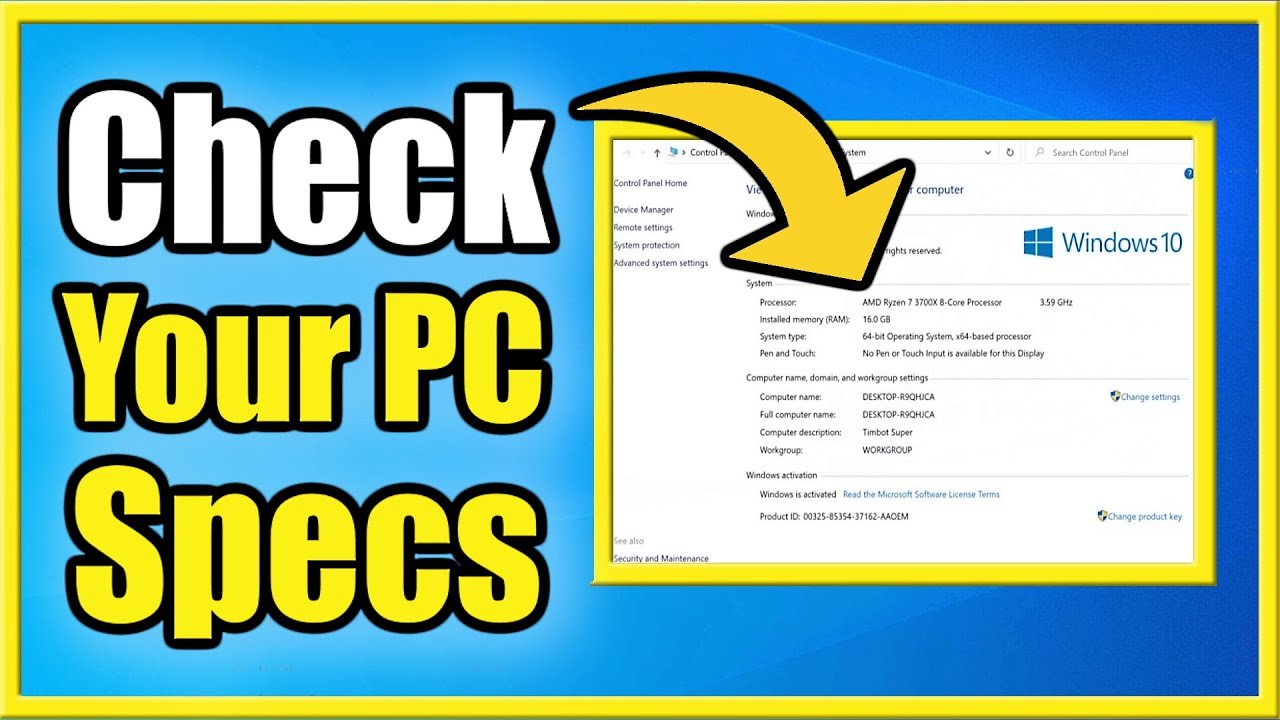
45. What should students do first after buying a laptop?
Install productivity apps, configure backups, set up notes software, and secure their device.
46. How do I set up printer connectivity on a new laptop?
Install drivers from the manufacturer and connect via USB, Wi-Fi, or Bluetooth.
47. Should I enable “Find My Device”?
Yes, it helps track your laptop if lost or stolen.
48. How do I ensure my laptop performs well for programming?
Install IDEs, enable virtualization, update drivers, and optimize RAM usage.
49. How do I improve Wi-Fi performance on a new laptop?
Update network drivers, use 5GHz band, and adjust router placement.
50. Should I use VPN on my new laptop?
Yes, for accessing secure networks and browsing privately.
51. How do I check if my laptop GPU is functioning properly?
Check via Device Manager and test with simple tasks like video playback or GPU apps.
52. Should I install multiple antivirus programs?
No—one antivirus is enough; multiple ones can slow down your system.
53. How can I optimize Windows 11 for better performance?
Disable animations, adjust power mode, and manage background apps.
54. How do I sync my smartphone with my laptop?
Use “Phone Link” for Windows to sync messages, photos, and notifications.
55. Should I install office software right away?
Yes, especially if you plan to use your laptop for work or studies.
56. How do I protect my laptop from dust?
Use a clean workspace, keep it in a sleeve, and clean vents regularly.
57. Should I use a laptop stand?
Yes, it improves ergonomics and airflow for better cooling.
58. How do I optimize power settings after purchase?
Go to Settings > Power & Battery > Choose balanced or performance mode.
59. Is it good to partition the SSD?
It’s optional. Partitioning helps separate system and personal files for better organization.
60. Should I keep my laptop plugged in while using it?
Yes, but avoid constant 100% charging. Modern batteries manage power well.
61. How do I check laptop battery health?
Use Windows battery report or third-party battery management tools.
62. What accessories should I buy after getting a new laptop in Nepal?
Mouse, backpack, cooling pad, surge protector, USB hub, and external hard drive.
63. How do I ensure my laptop keyboard lasts long?
Avoid eating near it, clean regularly, and use a keyboard protector if needed.
64. How often should I restart my new laptop?
At least once every few days for smooth performance.
65. Should I enable system restore?
Yes—helps revert changes if something goes wrong.
66. How can I transfer data from my old laptop?
Use cloud storage, external drives, Windows migration tools, or LAN transfer apps.
67. Is laptop servicing needed right after purchase?
No—but regular servicing every 6–12 months is recommended.
68. How do I boost gaming performance on a new laptop?
Enable GPU performance mode, update drivers, optimize settings, and ensure good cooling.
69. Should I create a guest account?
Yes if multiple people will use your laptop—helps protect your files.
70. When should I contact Alam Tech for help?
Anytime you notice unusual heating, performance drops, display issues, or require upgrades or servicing.